Getting started
diago renders diagrams from typed JSON specs: you say what is connected to what, and diago lays it out and draws it as SVG, PNG or Unicode text art, with draw.io and Excalidraw export in beta. This page takes about ten minutes.
To try diago without installing anything, open the playground.
Install
Section titled “Install”diago is one binary. Download the archive for your platform from the
latest release and put diago on PATH. On macOS, a binary downloaded with a browser is quarantined; clear it with xattr -d com.apple.quarantine diago. Or,
with Go 1.26 or later:
go install github.com/oxforge/diago/cmd/diago@latest # the latest releasego install github.com/oxforge/diago/cmd/diago@main # unreleased changesSVG, text art, draw.io and Excalidraw need nothing else. PNG output runs
resvg on the SVG; without it, -format png fails with an
install hint and every other format still works:
brew install resvg # macOS, or Linux with Homebrewcargo install resvg # any platform with RustOr download a binary for Linux x86_64 or macOS from
resvg’s releases and put it on PATH, or point
DIAGO_RESVG_PATH at it.
Your first diagram
Section titled “Your first diagram”Save this as hello.v1.json:
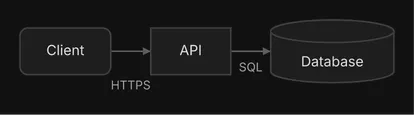
{ "type": "flow", "direction": "RIGHT", "nodes": [ {"id": "client", "label": "Client", "shape": "rounded"}, {"id": "api", "label": "API"}, {"id": "db", "label": "Database", "shape": "cylinder"} ], "edges": [ {"id": "client-api", "from": "client", "to": "api", "label": "HTTPS"}, {"id": "api-db", "from": "api", "to": "db", "label": "SQL"} ]}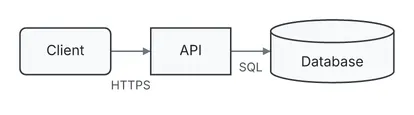
Render it three ways:
diago render hello.v1.json > hello.svgdiago render -format png hello.v1.json > hello.pngdiago render -format text hello.v1.jsonThe last command prints the diagram as text art:
  ╭────────╮    ┌──────┐    ╒══════════╕
  │ Client │───►│ API  │───►│ Database │
  ╰────────╯    └──────┘    └──────────┘
           HTTPS        SQL
Each node has an id, which edges use to name their ends, and a label, the text drawn in the
box. shape picks the box: rounded and cylinder here, a plain rectangle when it is left out.
direction is the way the diagram flows, RIGHT here.
diago placed the three nodes in order, routed each edge as right-angle segments around the boxes and drew the arrowheads. Rendering the same spec again gives the same bytes.
A Mermaid file renders the same way, as it is: diago render diagram.mmd. See Mermaid.
Check it
Section titled “Check it”check reads a spec and reports content findings without drawing anything:
diago check -strict hello.v1.jsonIt prints nothing and exits 0. Now change the api-db label to data and run it again:
vague-edge-label edges[1]: edge api->db label "data" says little; prefer a specific verb phrase like "validates order" or "publishes event"render prints the same findings on stderr, each after warning: . With -strict, check exits 1
while any finding remains. A finding that is deliberate can be silenced with a top-level
"ignore": ["vague-edge-label"] in the spec.
Change it, and see the diff
Section titled “Change it, and see the diff”Copy the spec to hello.v2.json, add a cache between the API and the database, and rename the
database to Postgres. Keep every id:
diago diff hello.v1.json hello.v2.json > diff.svgdiago diff -format text hello.v1.json hello.v2.jsonThe text form prints the diagram, then the change list:
                        reads ╒════════════╕                           ┌─►│  + Cache   │                ┌──────┐   │  └────────────┘  ╭────────╮    │ API  │───┘  │ Client │───►│      │───┐  ╰────────╯    └──────┘   │  ╒════════════╕           HTTPS           └─►│ ~ Postgres │                          SQL └────────────┘
hello.v1.json → hello.v2.jsonadded: node Cacheadded: edge API -> Cachechanged: node Postgres: label "Database" → "Postgres"
In SVG and PNG the same diff is drawn in color:
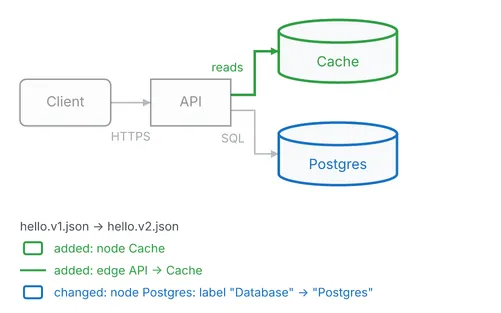
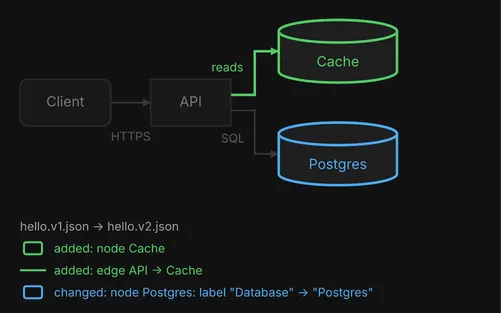
Added items are green and changed ones blue. A removed item is red, dashed, faded and struck through. Unchanged items are faded, so the change stands out. The change list sits under the picture in SVG and PNG, and after the diagram in the text form.
Ids are what make a renamed box “changed” rather than “removed and added”: the database kept
db, so diago knows it is the same node with a new label.
- Flow diagrams: the guides start here, then sequence, class, themes, formats, diffs and Mermaid.
- Claude Code: install the plugin so the agent draws with diago.
- Other agents: the same setup for any agent with a shell.
- CLI reference: every verb and flag.
- Gallery: every kind of diagram, with its spec beside it.